

Guide · Things to do
How to Play Videos and Music for the Whole Room
Screens and music players in World really play, for everyone in the room at once. This guide shows how to put on a YouTube video or a SoundCloud track, keep a playlist, share the remote with your guests and use the screens at FreeWorlds' venues.
Free account, straight into World. Already on MatchFlow? Log in with the same account.
Play something for the room, step by step
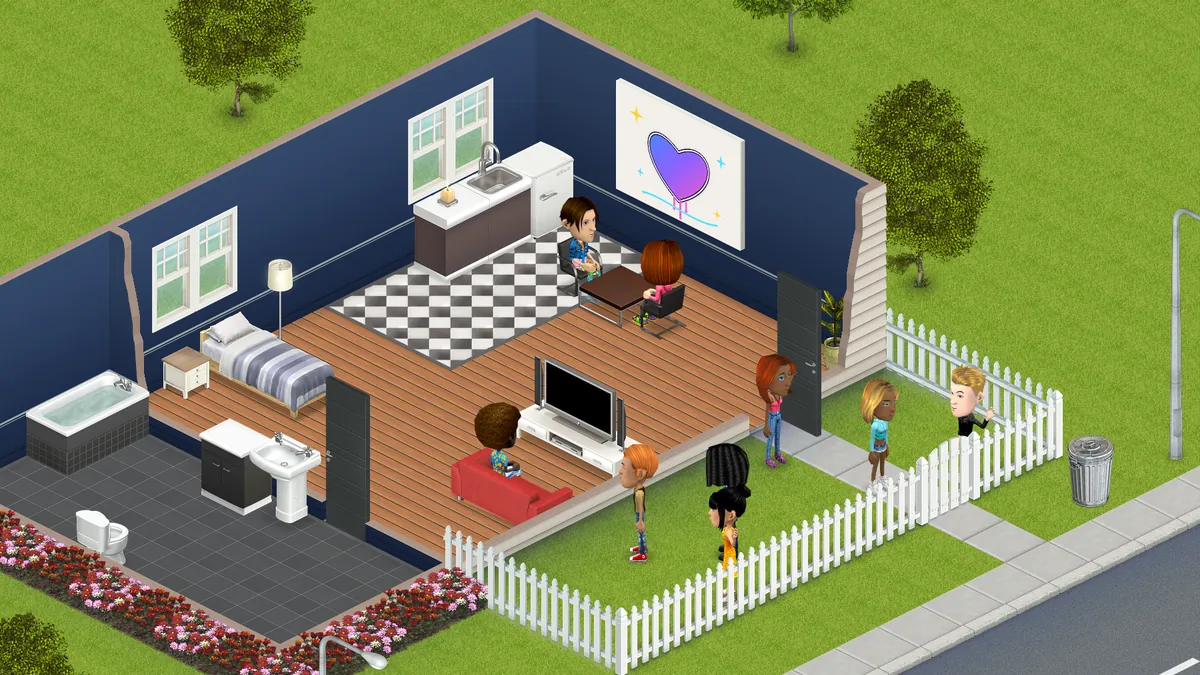
- Put a screen or a stereo in your spacePlace a TV from your Inventory for videos, or a stereo, boombox or radio for music. The Shop sells more of each.
- Click it and choose WATCH or LISTENA TV offers WATCH and a music player LISTEN. The Watch together or Listen together panel opens.
- Add a video or a trackPaste a YouTube link or a SoundCloud track's link into the box and add it. A music player can also play FreeWorlds Radio.
- Press playIt plays on that item for everyone in the room, at the same moment, and anyone who walks in later joins at the right spot.
- Share the remote if you likeIn your own space, switch on Members can add to the playlist, or Members can play, pause and skip, to let your guests queue and control it.
What plays on what
| Device | Plays |
|---|---|
| TVs and screens | YouTube videos and SoundCloud tracks |
| Stereos, boomboxes, radios, jukeboxes, turntables and DJ stands | FreeWorlds Radio, YouTube and SoundCloud |
- A playlist holds one service at a time, YouTube or SoundCloud, and up to 30 entries.
- SoundCloud links must be a single track, not a set or a profile.
- One thing plays in a room at a time: start a second player and World tells you something else is already playing.
- A few videos can't be played outside YouTube itself; World says so if you add one.
Playlists, likes and votes
The Playlists button keeps your music: My playlists for your own, Space playlist for what a space plays when nothing else is queued, and Browse for the ones others share. Add what is playing saves the current track, and Make it this space's sets a playlist as your space's own.
While something plays, the room can give it a Thumbs up, Vote it off by majority, or skip it once enough of the room agrees.
Sharing the remote
In your own space, you and the people you let decorate control what plays. Two switches open it up to your guests: Members can add to the playlist, and Members can play, pause and skip.
If a TV shows something it shouldn't, press the flag beside its controls to report it. It disappears for you straight away and goes to MatchFlow's staff, and when enough people in the room report the same thing it stops for everyone.
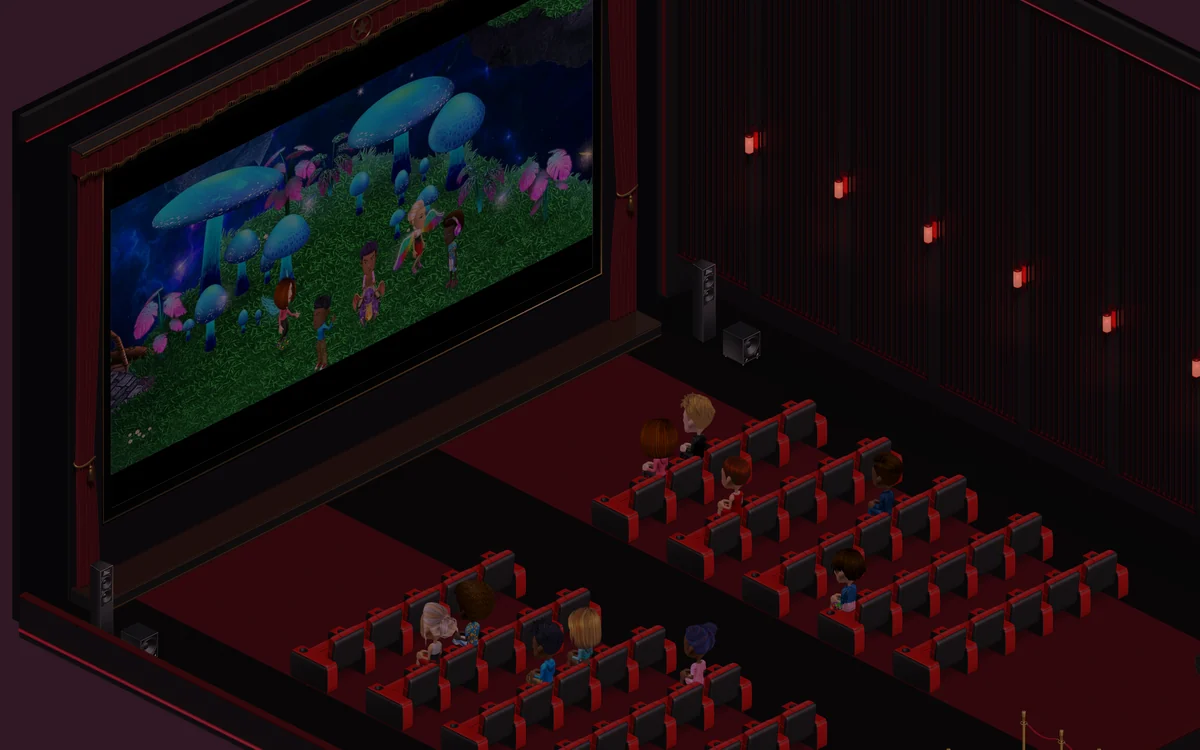
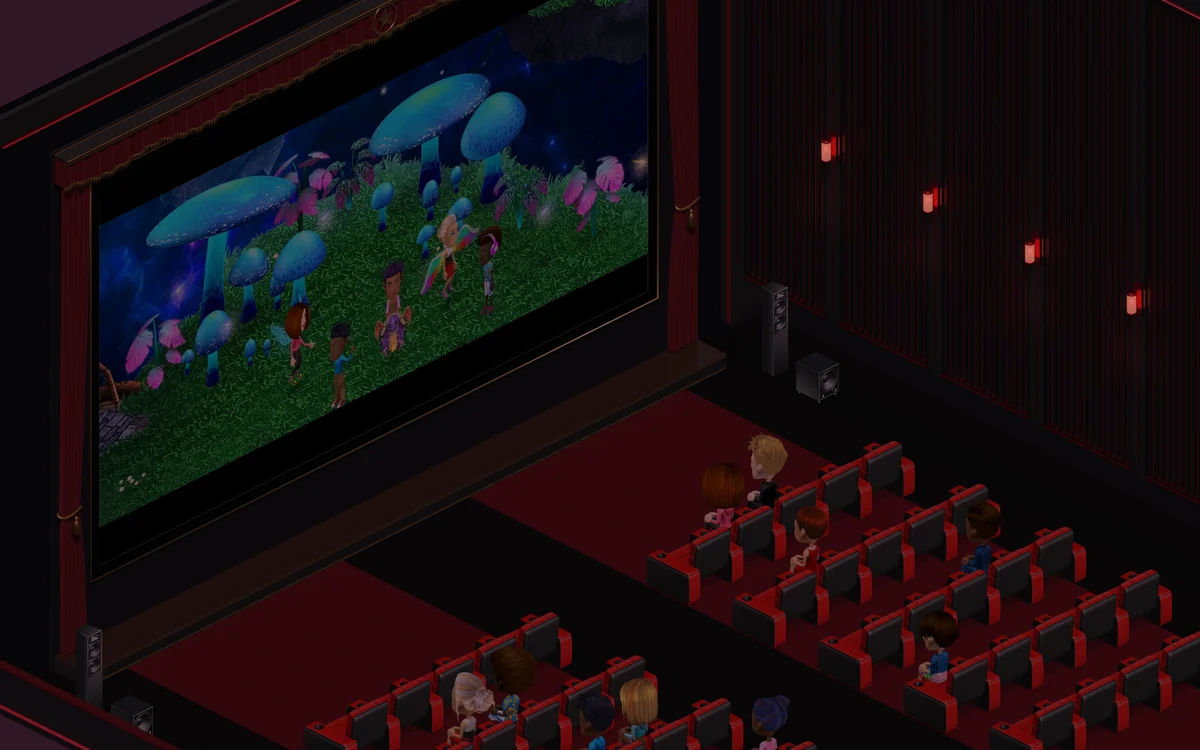
At FreeWorlds' own venues, anyone in the room can add something and press play. At the Cinema it's the giant screen; sit down and the cinema view puts it in front of you, with a Fullscreen button. The DJ booths at the Arena, the Mainstage and Scarlet Club play the venue's own DJ sets when MatchFlow has put them up, and anyone can switch them to a YouTube or SoundCloud track.
Lights that follow the music
Dance floor lights, LED floors and the concert rigs at the venues keep time with whatever plays. Whoever controls the music also gets the light desk: a mood (Auto, Techno, House, Trance or Chill), cues like Build and Drop, and effects from the fixtures in the room.
Each person's browser plays the video in YouTube's or SoundCloud's own player. MatchFlow doesn't copy, store or stream it again.
More
For why watching together in World feels like being in the same room, see watch together in a virtual world. To get everyone over, see inviting friends.

Ready to start your story?
Put a TV in your living room and press play for the whole room.