

Guide · Your home
How to Decorate Your Home in FreeWorlds
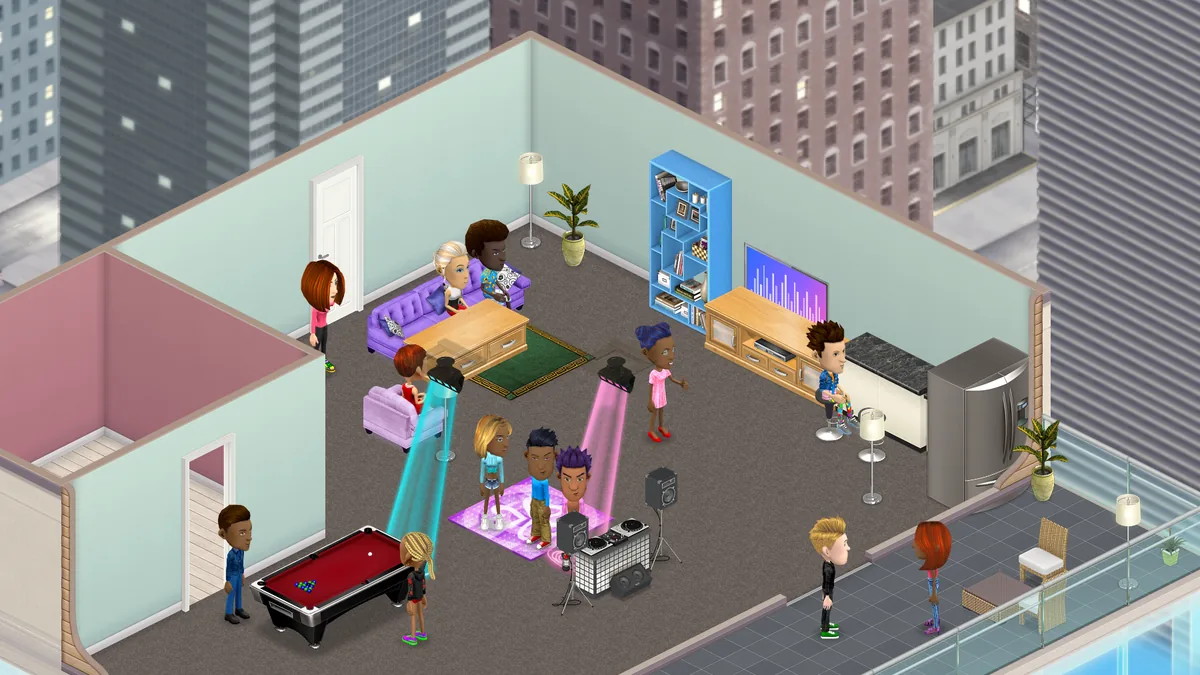
How to put furniture in your home, move it, turn it, stack it on a table and take it away again, how to change your walls, floors and lighting, and how to take your space's picture.
Free account, straight into World. Already on MatchFlow? Log in with the same account.
Placing furniture
Everything you own is in your Inventory, on the dock. Its tabs sort it: Furniture, Wall, Plants, Misc, Finds, Widgets and Cards for your home, and Clothing, Wearable, Edible, Usable and Emotes for you.
- Click a piece in your Inventory. Its card opens with a Place in space button (for a stack of the same thing, Place one or Place several).
- Move your pointer over the room: the piece follows it, snapping to the floor or to the wall it can hang on.
- Press R to turn it, and click to put it down. With Several, keep clicking to place more.
- Press Esc, a right click or Done to stop.
With a mouse you can also drag a piece straight from your Inventory into the room.
Moving, turning and taking things away
Click a piece already in the room to open its menu: MOVE, EDIT, FIND ITEM and INFO. EDIT holds the rest: its interactions, its name, who may move or use it, its settings, selling it, and REMOVE, which asks before it puts the piece back in your Inventory.
While you move a piece: drag the hand to slide it, use the arrow keys to nudge it, Ctrl+arrows or R to turn it, and Enter or Esc when you're done.
Shortcuts
| Click with… | Does |
|---|---|
| Ctrl (Cmd on a Mac) | Move |
| Ctrl+Shift (Cmd+Shift) | Remove straight away, without asking |
| Shift | Its interactions |
| Alt | Sell |
Rugs and other pieces you walk on open their menu on a right click, a long press or a quick second click.
Stacking and hanging
- On a table: pieces made to stand on a table sit on its top once most of the piece is over it. Move the table and what stands on it comes too.
- On a wall: pictures, shelves and other wall pieces hang on a wall's face. Point at the wall you want and they go up there.
Walls and floors
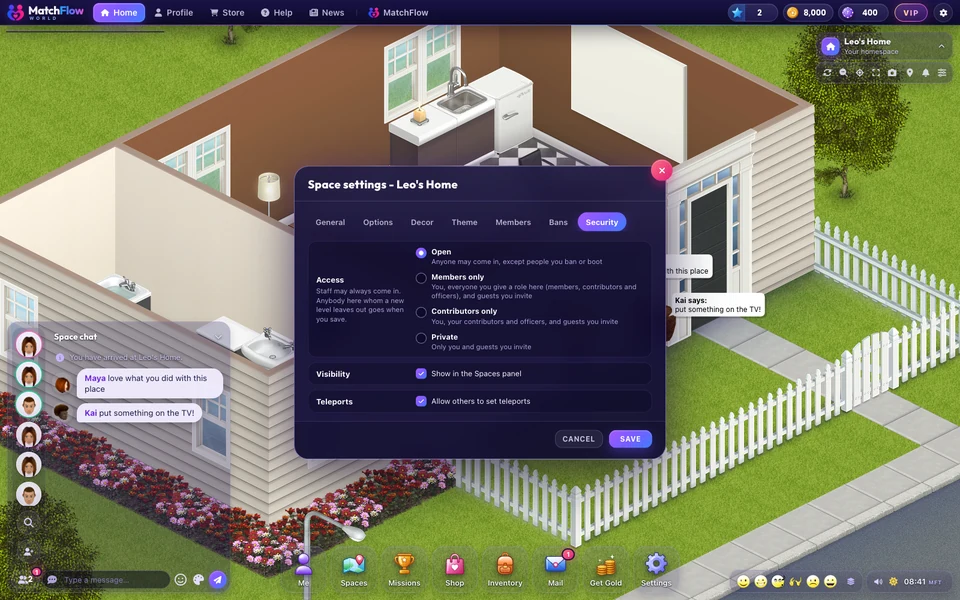
Open your space's settings from the gear at the top right and choose Decor. The Beginner House has four slots: Interior Walls, Interior Floors, Exterior Walls and Backyard. Click a swatch, pick a tile, and the room changes as you pick; Save keeps it and Cancel puts it back.

Lighting
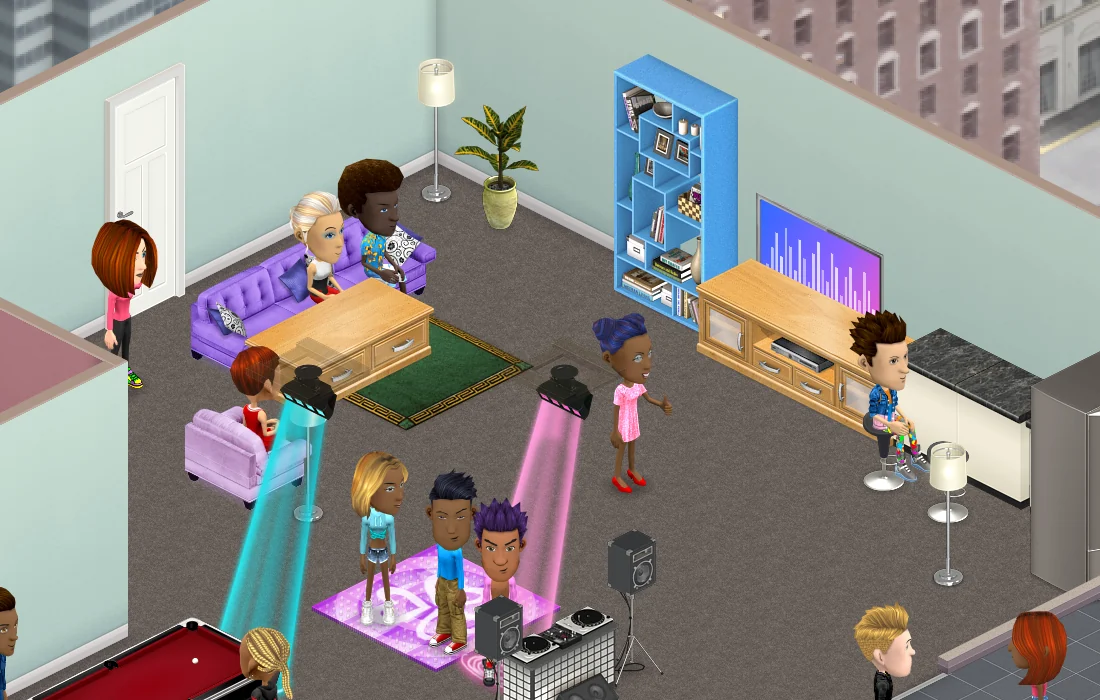
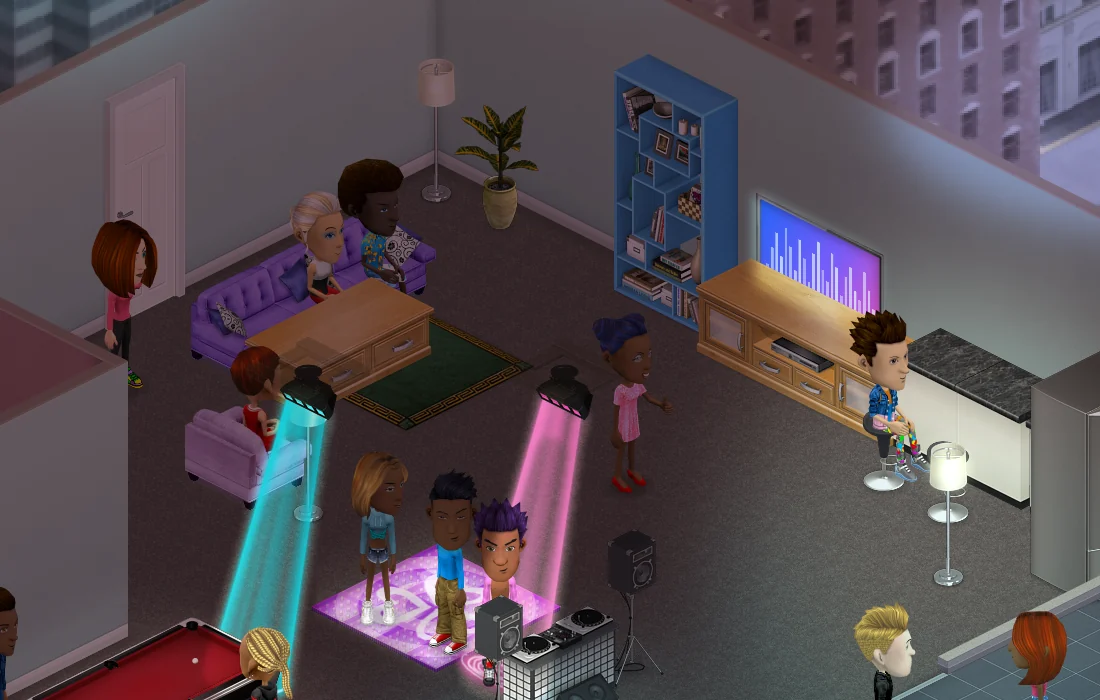
The Theme tab sets how your space is lit. Under Lighting type:
- Time of Day holds the space at one hour, so it's always midday, or always night.
- Day Cycle runs its own day, as long or as short as you set it, starting from World's own clock (FreeWorlds Time).
- Disabled switches off the lighting that follows the clock.
A Lighting theme gives the light a mood of its own, from Spring to Scarlet Night, and Force lighting makes everyone see it as you set it.
Your space's picture
Press the camera at the top right to Take a picture, frame the room, and choose Set as space picture. That picture is what people see for your space in Spaces. Only the owner sets it; until you do, World takes one for you.
Decorating with friends
Give a friend the Contributor role and they can decorate too, with their own furniture, which stays theirs. Officers can move or remove anyone's pieces. Each piece also has its own SECURITY: who may move it and who may use it. Roles and doors are in the privacy guide.
More furniture, more space
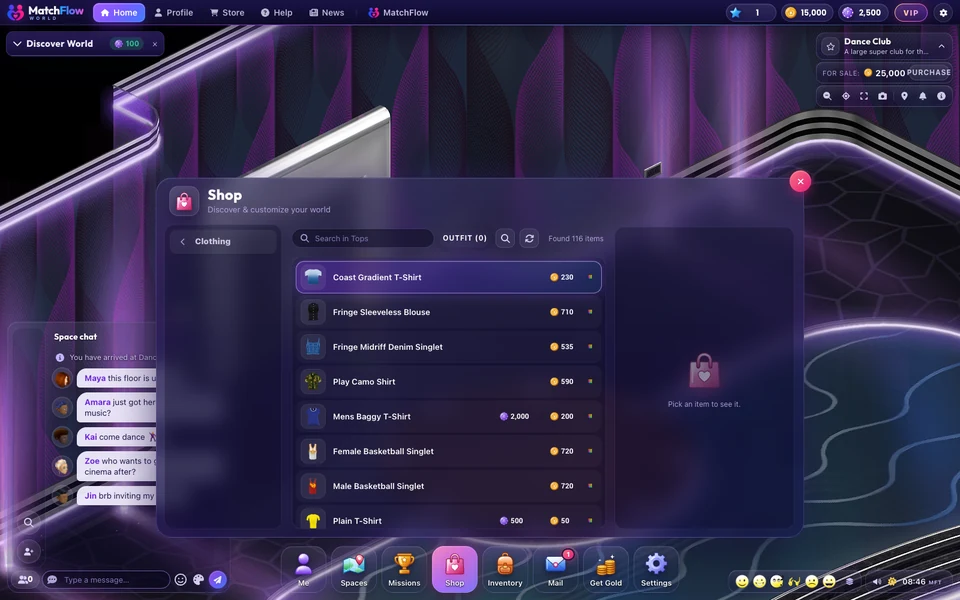
The Shop sells 1,000+ pieces for your rooms. When you want more room, Spaces has a For Sale tab: every space for sale has a showroom you can walk round first, and buying builds you a copy of your own. Your home can't be sold, but rooms you buy can.
For what a home in World can be, see homes in FreeWorlds.

Ready to start your story?
Your Beginner House is a blank canvas. Make it yours.